How do I set up a home network?Setting up a home network involves several steps. Here's a simplified guide:
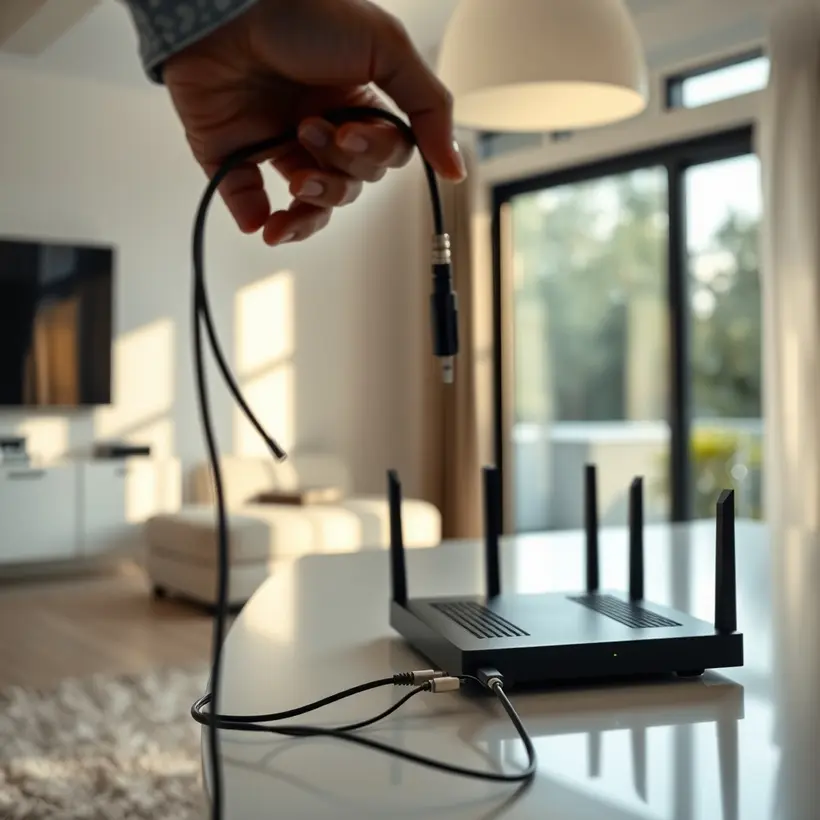
1. **Gather equipment**: You'll need a router, modem, and devices to connect (e.g., laptops, smartphones, smart TVs).
2. **Choose a location**: Place your router in a central location to ensure even Wi-Fi coverage.
3. **Connect your modem**: Plug your modem into your router and power them on.
4. **Set up your router**: Follow the manufacturer's instructions to configure your router's settings, such as Wi-Fi name and password.
5. **Connect devices**: Use an Ethernet cable or Wi-Fi to connect your devices to the network.
If you need help with specific setup or troubleshooting, consider using the "Request a specialist" form on this page to connect with a network expert.
Next step: Have you already purchased a router and modem, or do you need recommendations?
Why is my Wi-Fi slow?A slow Wi-Fi connection can be frustrating. Let's troubleshoot together.
Here are some common reasons for slow Wi-Fi:
1. **Distance from the router**: If you're too far from the router, your signal strength may be weak, causing slow speeds.
2. **Interference from other devices**: Other devices on the same frequency can cause interference, slowing down your Wi-Fi.
3. **Outdated router or modem**: Using outdated hardware can lead to slow speeds.
4. **Too many devices connected**: If too many devices are connected to your network, it can slow down your speeds.
5. **Physical barriers**: Walls, floors, and other physical barriers can block or weaken your Wi-Fi signal.
To resolve the issue, try restarting your router, moving closer to the router, or switching to a different Wi-Fi channel. If the problem persists, consider upgrading your router or modem.
Next step: Have you tried restarting your router recently?
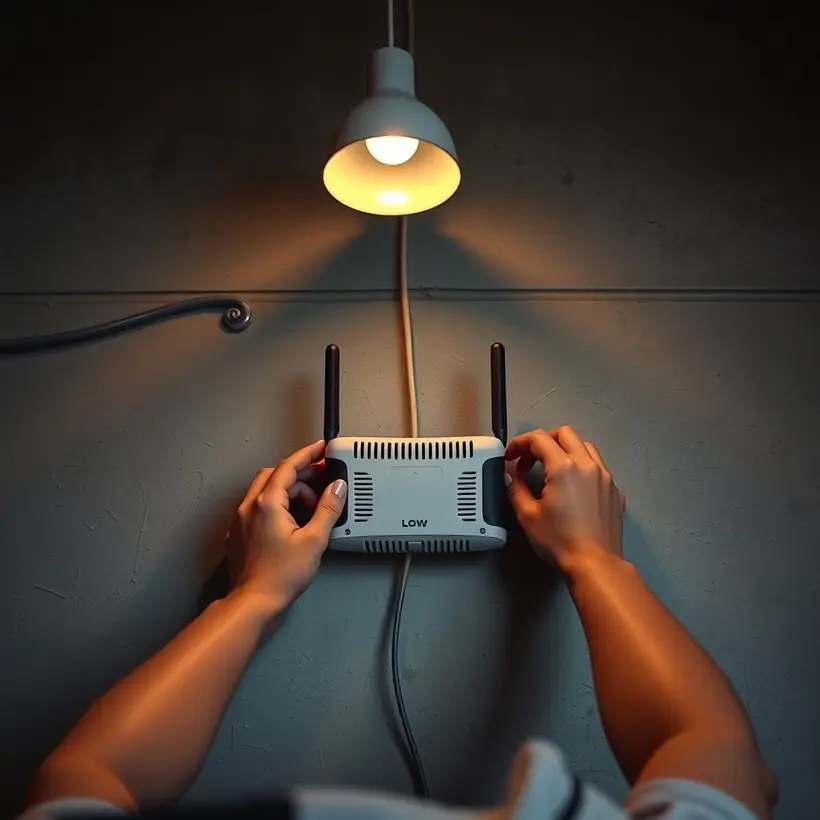
How do I secure my router?Securing your router is crucial to protect your home network from unauthorized access. Here are some steps to follow:
1. **Change the default admin password**: Log in to your router's web interface (usually by typing its IP address in a web browser) and change the default admin password to a strong, unique one.
2. **Update the firmware**: Regularly check for firmware updates and install them to ensure you have the latest security patches.
3. **Enable WPA2 encryption**: Set up WPA2 encryption (or WPA3 if your router supports it) to secure your Wi-Fi network.
4. **Change the default SSID**: Rename your network's name to something unique and not easily guessable.
5. **Disable WPS**: Wireless Protected Setup (WPS) can be a security risk, so consider disabling it.
To take it a step further, consider using a **guest network** to isolate visitors from your main network and a **firewall** to block incoming traffic.
Next step: Have you checked your router's manual for specific instructions on how to access its web interface and change settings?